
The Complete LinkedIn Video Spec Guide for Marketers
If you're just posting a standard video to your LinkedIn feed, the rules are fairly straightforward. Your video file should be an MP4, with a file size between 75 KB and 5 GB. The sweet spot for length is anywhere from 3 seconds to 10 minutes. While LinkedIn accepts a wide range of aspect ratios, I always recommend a square (1:1) or vertical (4:5) format—it just takes up more real estate on mobile feeds, which is where most people are scrolling.
Your Quick Reference for LinkedIn Video Specs
Trying to keep track of the different video requirements for organic posts versus the various ad formats on LinkedIn can feel like a moving target. To make it easier, it's incredibly helpful to have a go-to reference that clearly lays out the differences. Each format has its own set of rules, all designed to get the best performance, whether you're aiming for broad engagement or a highly targeted ad campaign.
The key things to keep an eye on are always the video's duration, its file size, and its aspect ratio.
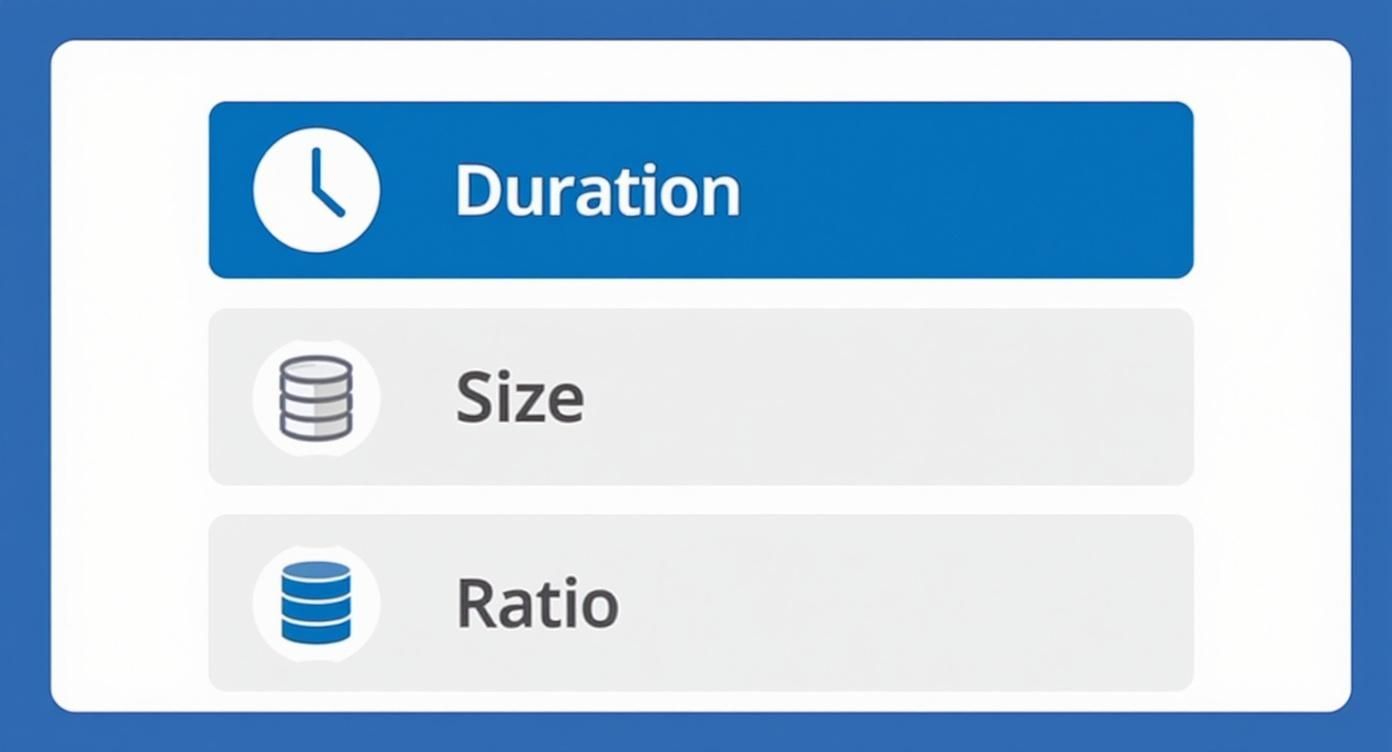
As you can see, while there’s a bit of overlap, each technical spec has a specific range you need to stick to. Getting it right from the start saves you the headache of failed uploads and re-exports.
LinkedIn Video Specifications Quick Reference Table
To give you a more detailed, at-a-glance view, the table below breaks down the most critical video specs for the formats you'll use most often. Think of this as your pre-flight checklist before hitting "export" on your next video. Following these guidelines is the surest way to avoid frustrating upload errors.
This table is especially handy for teams that handle both organic content and paid ads, since it allows for a quick side-by-side comparison without having to dig through LinkedIn's official documentation.
Video TypeAspect RatioResolution RangeMax File SizeDuration RangeOrganic Feed Video1:2.4 to 2.4:1256x144 to 4096x23045 GB3 sec - 10 minSingle Video Ad1:1, 16:9, 9:16, 4:5360p to 1080p+200 MB3 sec - 30 minCarousel Video Ad1:1 (recommended)360p to 1080p+200 MB3 sec - 30 min
The main thing to notice here is the massive difference in file size and duration limits between organic posts and ads. Organic videos give you a lot more room to play with—up to a hefty 5 GB and 10 minutes long. Ads, on the other hand, are much stricter, capping out at 200 MB and 30 minutes. This is all about ensuring ads load quickly and provide a smooth experience for users.
Getting the Technical Basics Right
Before we jump into the nitty-gritty of dimensions and lengths for specific post types, let's cover the foundational technical specs. Think of these as the non-negotiables that apply to almost every video you'll upload to LinkedIn.
Getting these core requirements wrong is a common source of frustration. You could have the perfect video length and aspect ratio, but if the underlying file isn't set up correctly, you’ll hit an upload error every time.
First up is the file format, or container. LinkedIn's platform is built to handle MP4 files smoothly. While you might get lucky with other formats, sticking to MP4 is your best bet to avoid any compatibility headaches. It's the standard for a reason.
Video and Audio Codecs: What's Inside the File
Now, let's look inside that MP4 container. Your video and audio streams need to be encoded with specific technologies called codecs, which compress your media for the web. Using the right codecs is absolutely critical.
For video, LinkedIn requires H.264, which you might also see labeled as Advanced Video Coding (AVC). It's the go-to standard for balancing high-quality video with manageable file sizes, and pretty much every editing software and device supports it.
For the audio track, the platform recommends AAC (Advanced Audio Coding). This codec delivers crisp, clear sound without bloating your file size.
Key Takeaway: The magic formula for a LinkedIn-friendly video is an MP4 container with an H.264 video track and an AAC audio track. Nail this combination, and you've already dodged the most common technical upload problems.
If you're staring at your export settings and feeling a bit lost, don't worry. Most video editing software has presets like "Web" or "Social Media" that will automatically use this exact H.264/AAC combo.
To make it even easier, you can use tools built specifically for creating social media content. For example, the best LinkedIn video generator platforms take care of all this technical encoding behind the scenes, so you can just focus on making great content. Getting these fundamentals right ensures your video looks and sounds exactly as you intended when it hits the feed.
Organic LinkedIn Video Post Specifications
When you post a video to your personal profile or company page without putting any ad spend behind it, you're dealing with an organic video. This is the bread and butter for most content strategies on LinkedIn, where the goal is to build community and share value with your followers. Getting the specs right from the start is non-negotiable; it ensures your video looks sharp and plays smoothly for everyone, no matter how they’re viewing it.
Organic videos give you a lot more breathing room than their paid ad counterparts, especially when it comes to length and file size. This freedom is perfect for creating richer content like in-depth tutorials, expert interviews, or detailed company updates.
Duration and File Size Limits
The limits for organic posts are quite generous, which is great for creators who want to dive deep into a topic. You don't have to worry about the tight constraints you often find with ad formats.
- Minimum Duration: 3 seconds. Anything less than this, and LinkedIn won't even process the upload.
- Maximum Duration: 10 minutes. This gives you plenty of runway for detailed storytelling or even short webinar-style content.
- Maximum File Size: 5 GB. A huge plus. This large cap means you can upload high-resolution video without having to compress it to death and lose all that crisp quality.
Essentially, you can focus on making your video look fantastic without constantly checking if you're about to hit a file size wall. A detailed 10-minute product demo in full 1080p, for example, will comfortably fit within that 5 GB limit.
Aspect Ratio and Resolution Guidelines
Your choice of aspect ratio is one of the most critical decisions you'll make. It directly controls how much space your video takes up in the feed, which can make or break viewer engagement. Get it right, and you’ll command attention.
LinkedIn is flexible, officially supporting a range from a very tall 1:2.4 to a wide cinematic 2.4:1. In practice, though, most successful videos stick to one of three tried-and-true formats:
- Recommended Resolution: 1920x1920 pixels
- Use Case: This is the workhorse of LinkedIn video. It looks great on both desktop and mobile, taking up significantly more vertical real estate in the feed than a traditional horizontal video. It's a go-to for interviews, quick tips, and just about any general-purpose video.
- Recommended Resolution: 1920x1080 pixels
- Use Case: The classic widescreen format. It’s still the standard for anything with a cinematic feel, detailed presentations, or content you plan to repurpose on platforms like YouTube.
- Recommended Resolution: 1080x1920 pixels
- Use Case: Built for the full-screen mobile experience. This format is incredibly immersive and works well for behind-the-scenes content, quick Q&As, or anything meant to feel immediate and personal, much like a social media Story.
Here's a key strategic tip: always upload your video directly to LinkedIn instead of just sharing a link from another site. The data shows that posting native LinkedIn videos can increase engagement by 38% and boost visibility by 42%. For more on this, you can dig into other insights about LinkedIn video performance and see how adding captions keeps people watching longer.
LinkedIn Video Ad Specifications by Format
When you move from posting organic videos to running paid ads on LinkedIn, the rules of the game change. You have to be much stricter with the technical details. Organic posts give you a lot of leeway, but video ads are built for performance. That means tighter specs designed to make sure they load fast and give users a smooth experience. Getting the linkedin video spec right for each ad format is non-negotiable if you want to run a successful campaign.
And it's worth the effort to get it right. An overwhelming 97% of B2B marketers use LinkedIn for their content, and for good reason. The platform is credited with generating 80% of high-quality B2B leads from social media, making video ads an incredibly potent tool in your marketing kit.

Single Video Ads
This is your classic, go-to video ad format. Single Video Ads, sometimes called standalone ads, pop up directly in a user's feed as a sponsored post. For SaaS products like conference room scheduling software, this format works especially well for quick product demos and conversion-focused campaigns. They're incredibly versatile—perfect for everything from a quick, punchy brand awareness clip to a detailed product demo meant to drive conversions.
The key here is finding that sweet spot between being informative enough to be useful and short enough to grab attention instantly.
- File Size: Keep it between 75 KB and 200 MB. This is a massive drop from the 5 GB allowed for organic posts, so solid video compression is your friend.
- Duration: You can go from 3 seconds all the way up to 30 minutes. But let's be realistic: the top-performing ads almost never break the 30-second mark.
- Aspect Ratio: You've got options: 16:9 (horizontal), 1:1 (square), 4:5 (vertical), and 9:16 (full vertical).
- Resolution: Anywhere from 360p (480 x 360) up to 1080p (1920 x 1080).
- Headline: You have up to 200 characters for the headline that appears right below the video. Make it count; this is what drives the click.
- Introductory Text: With up to 600 characters, this is your chance to set the stage and give context before someone even hits play.
If you're new to paid campaigns and want to get started without a huge technical learning curve, check out our guide on using the LinkedIn ad builder. It can really simplify things.
Carousel Video Ads
Carousel ads are fantastic for storytelling. They let you stitch together multiple videos, or even a mix of videos and images, into one swipeable ad. Think of it as a mini-presentation for highlighting different product features, telling a multi-part story, or walking users through a step-by-step process.
Each "card" in the carousel is its own little ad, complete with its own video, headline, and link.
- Number of Cards: You need at least 2 cards and can have up to 10.
- File Size (per card): Each card can have a video up to 200 MB.
- Duration (per card): 3 seconds to 30 minutes. Just like single ads, shorter is almost always better, especially when you're trying to keep someone swiping.
- Aspect Ratio: You should really stick to 1:1 (square). While other ratios are technically possible, a square format ensures a clean, consistent look across every card without any weird cropping.
- Resolution: 360p to 1080p.
- Card Headline: Up to 45 characters if the card has its own landing page link.
- Introductory Text: You get up to 255 characters for the text that introduces the entire carousel.
Pro Tip: Make sure each video in your carousel can stand on its own but also contributes to the bigger picture. Your first card has one job: be interesting enough to make people want to swipe and see what's next.
LinkedIn Event Video Ads
Got a webinar, conference, or virtual workshop coming up? Promoting it with a video ad is a great way to drive registrations. This format lets you use a dynamic video to show people what your event is all about, making it feel much more engaging than a simple static image.
The ad shows up in the feed and links people straight to your LinkedIn Event page.
- File Size: Maxes out at 200 MB.
- Duration: Up to 30 minutes, but a short, high-energy trailer will almost always outperform a long-form video here.
- Aspect Ratio: Supports 16:9, 4:5, 1:1, or 9:16.
- Headline: Up to 200 characters.
- Introductory Text: Up to 600 characters.
Choosing the right format is just the first step. To see real results, you need to understand how these specs fit into the bigger picture of winning LinkedIn advertising campaigns. A great strategy is what turns a well-formatted ad into a successful one.
To make it easier to see how these formats stack up, here’s a quick comparison table.
LinkedIn Video Ad Format Comparison
This table breaks down the key technical specs and ideal use cases for each LinkedIn video ad format, helping you decide which one best fits your campaign goals.
Ad FormatPrimary Use CaseAspect RatioMax DurationHeadline LimitSingle Video AdBrand awareness, lead generation, product demos16:9, 1:1, 4:5, 9:1630 minutes200 charactersCarousel Video AdStorytelling, multi-feature showcase, tutorials1:1 (recommended)30 minutes (per card)45 characters (per card)Event Video AdDriving registrations for webinars, conferences, etc.16:9, 1:1, 4:5, 9:1630 minutes200 characters
Having this at your fingertips can save you a ton of time when planning your next video campaign. By matching the format to your message, you're already one step closer to hitting your targets.
Nailing Your Thumbnails, Captions, and Subtitles
Even a perfectly produced video can fall flat without the right finishing touches. Your thumbnail is what makes people stop scrolling, and your captions are what keep them engaged—especially since 85% of social media users watch videos without sound. Getting the specs right for these elements is non-negotiable for driving views.
Think of your video’s thumbnail as its book cover in a very crowded library. A sharp, compelling image can be the difference between a scroll-past and a click. While LinkedIn can grab a random frame for you, uploading a custom thumbnail gives you total control over that crucial first impression.
Custom Thumbnail Specifications
To make sure your thumbnail looks crisp on every device, you need to follow LinkedIn’s guidelines. A blurry or poorly cropped image looks unprofessional and can kill your video's credibility before it even starts.
- Recommended Dimensions: Stick to 1920x1080 pixels. This is a standard 16:9 ratio, and LinkedIn will crop it to fit your video's aspect ratio (like for a 1:1 square video).
- Accepted File Formats: You can use either JPG or PNG for your thumbnail files.
- Maximum File Size: Make sure the file is under 2 MB, or it won't upload.
A great thumbnail often uses bold text overlays and high-contrast visuals to grab attention. A pro tip is to keep the most important elements centered. The edges often get cropped, especially on mobile, so you don't want your key message cut off.
If you're managing multiple platforms, keeping all your visuals consistent is key. For more on this, check out this complete guide to social media image sizes to see how LinkedIn specs fit into the bigger picture.
Caption and Subtitle File Requirements
Captions aren't just for accessibility; they're a core engagement tactic. With most people watching silently, subtitles are your only way to get the message across. LinkedIn requires you to upload them in a very specific format.
You'll need to upload a separate caption file when you post your video. LinkedIn doesn't have an auto-captioning feature, so this is a manual step, but it's one you can't afford to skip.
SRT File Format
The only format LinkedIn accepts is SubRip Subtitle (.SRT). It’s a simple text file that pairs your caption text with precise start and end timecodes.
- File Type: Must be an .SRT file.
- Encoding: Always save your file with UTF-8 encoding. This prevents weird symbols or characters from showing up garbled in your captions.
- Formatting: A standard SRT file includes a number for each caption, the timestamp, and the text itself, all separated by blank lines.
Most video editing software, like Adobe Premiere Pro or Final Cut Pro, can export SRT files directly. If not, plenty of online tools can create one from a transcript for you, making it pretty painless to meet this spec.
Troubleshooting Common Video Upload Issues
https://www.youtube.com/embed/qde3yzm2l2E
It's a frustrating moment for any creator. You've followed every LinkedIn video spec to the letter, but your upload still fails. When LinkedIn rejects your file, it's almost always due to one of a few common issues that are surprisingly easy to fix once you know what to look for.
Most problems boil down to three main culprits: an unsupported file format, an incorrect codec, or a file that's just too big or too long. Getting these technical details right is about more than just a successful upload; it's about performance.
LinkedIn’s specs are designed to make sure videos load quickly and play smoothly for everyone. A good user experience is everything, especially when you consider that native videos can get five times more engagement than other content, and live videos can generate a staggering 24 times more interaction. If you're curious about the data behind video's impact, these video marketing statistics for 2025 are worth a look.
Solving File Type and Codec Errors
One of the most frequent errors you'll see is about an unsupported file type. If you tried to upload a video with a .MOV, .AVI, or .WMV extension, LinkedIn's system will almost certainly reject it.
- The Problem: Your video is saved in a container format that LinkedIn doesn't officially support.
- The Solution: This is an easy fix. Just use an MP4 converter to convert your video to the MP4 format. You can do this with pretty much any video editing software or a free online tool—just select MP4 as the output when you export.
Now, here's a trickier one. Even if your video is an MP4 file, it can still fail if the video or audio streams inside it were created with the wrong codec. It's a subtle issue, but it happens all the time.
- The Problem: The video stream isn't encoded with H.264 (AVC), or the audio isn't encoded with AAC.
- The Solution: You'll need to re-encode the video. Head back to your editing software's export settings and specifically choose H.264 for the video codec and AAC for the audio codec. This makes sure the guts of your MP4 file are exactly what LinkedIn expects.
Addressing Size and Duration Limit Issues
Another common roadblock is trying to upload a file that's too large or too long for the post type you're using. The limits for a standard organic video are very different from the specs for a paid video ad campaign.
For example, if you try to post a 12-minute, 8 GB video to your organic feed, it's guaranteed to fail. You’ve blown past both the 10-minute duration limit and the 5 GB file size limit.
Quick Fix Checklist
- Check File Extension: Does the filename end in .mp4? If not, convert it.
- Verify Codecs: Double-check that your video is H.264 and your audio is AAC. If you're not sure, just re-export with those settings selected.
- Review Duration and Size: Does your video's length and file size fit within the rules for your post type (organic vs. ad)? You may need to trim it down or compress the file.
By running through these three checks, you can solve the vast majority of upload errors and get your video live without any more headaches.
Got Questions About LinkedIn Video? We’ve Got Answers.
Even with all the specs laid out, you’re bound to run into a few head-scratchers when you're in the trenches creating and uploading video. This is where we tackle the most common questions that pop up for creators, marketers, and ad teams.
Think of this as your quick-lookup guide for solving those nagging little problems. From compression quirks to finding that sweet spot for video length, these answers will help you get your videos perfectly primed for LinkedIn.
What’s the Best Video Length for LinkedIn?
This is the million-dollar question, but the answer isn't a single number. The "best" length really depends on what you're trying to achieve.
- For Brand Awareness (Top of Funnel): Keep it short and sweet—aim for 15-30 seconds. Your goal is to grab attention fast and leave a lasting impression. Treat it like a classic TV spot: punchy, memorable, and focused on one core message.
- For Consideration (Middle of Funnel): You have a bit more room here, so 60-90 seconds works well. This gives you just enough time to outline a problem and present your solution without overstaying your welcome. It's the perfect length for product demos or quick explainer videos.
- For Organic Engagement and Thought Leadership: For your regular feed posts, videos between 1 to 3 minutes tend to hit a home run. It’s long enough to deliver real value—like a mini-tutorial or an insightful story—which is what gets people talking, commenting, and sharing.
Remember, while organic posts can run up to 10 minutes and ads can hit 30 minutes, viewer attention drops off a cliff after the 2-minute mark. No matter the total length, make sure your hook and key message land within the first 10 seconds.
Does LinkedIn Compress Video Files?
Yes, and it does so pretty aggressively. This isn’t a LinkedIn quirk; every social platform does it. They have to compress video to make sure content loads quickly and plays smoothly for everyone, especially for the massive audience on mobile devices with varying connection speeds.
When you upload that beautiful, high-resolution video you just exported, LinkedIn's system gets to work, re-encoding it into several smaller, more manageable versions. Unfortunately, this process always results in some loss of quality.
Pro Tip: To fight back against compression, give LinkedIn a better file to start with. Export your video at a higher bitrate than you think you need. A data-rich source file provides their algorithm with more information to work with, which usually leads to a much cleaner and sharper final video. Whatever you do, don't upload a file that's already been heavily compressed.
Should My LinkedIn Video Have Sound?
Here’s the rule of thumb: produce your video with sound, but design it to be understood without it. The data doesn't lie—around 85% of social media videos are watched on mute. If your message relies solely on audio, you're missing out on the vast majority of your potential audience.
Follow these best practices for a sound-on/sound-off world:
- Captions and On-Screen Text are Non-Negotiable: Your key points must be visible on screen. Use a combination of text overlays, clear graphics, and, most critically, accurate captions (either burned-in or an SRT file).
- Let Your Visuals Do the Talking: The video itself should tell a coherent story even in complete silence. Strong visuals, clear action, and expressive on-screen talent are your best friends here.
- Don’t Forget the "Sound-On" Crew: For the 15% who do turn the volume up, make it worth their while. Crystal-clear audio makes your brand feel professional. A muffled voiceover or music that drowns out the speaker is an instant turn-off. Invest in a decent microphone and get the audio mix right.
Ultimately, your goal is a video that's perfectly clear with the sound off but offers a richer, more immersive experience for those who choose to listen.
Why Is My LinkedIn Video Blurry?
If your video looks soft or pixelated after you upload it, the culprit is almost always LinkedIn's compression clashing with a low-quality source file. It usually boils down to one of three things.
First, check your original export settings. If you exported at a low resolution (like anything under 720p) or used a low bitrate, the file was already lacking the visual data it needed to look sharp. When LinkedIn applies its own compression on top of that, the quality degradation gets magnified.
Second, it could be the complexity of your scenes. Fast motion, intricate graphics, or effects like falling confetti require a much higher bitrate to render cleanly. If the bitrate is too low, the compressor can't keep up, and you get those blocky, blurry artifacts in busy parts of the video.
And finally, you might be using an unsupported format. This can cause all sorts of rendering errors on LinkedIn's end. To stay safe and ensure the best possible outcome, stick to the tried-and-true formula: an MP4 container with H.264 video and AAC audio codecs.
Ready to create stunning, perfectly optimized video ads in minutes? quickads.ai uses AI to generate high-performance image and video ads tailored for platforms like LinkedIn. Stop guessing and start creating ads that convert. Get started with Quickads today!








Privacy is important to us, so you have the option of disabling certain types of storage that may not be necessary for the basic functioning of the website. Blocking categories may impact your experience on the website. View Our Privacy Policy


