
Discover the Best Free Reel Maker App for Stunning Social Media Videos
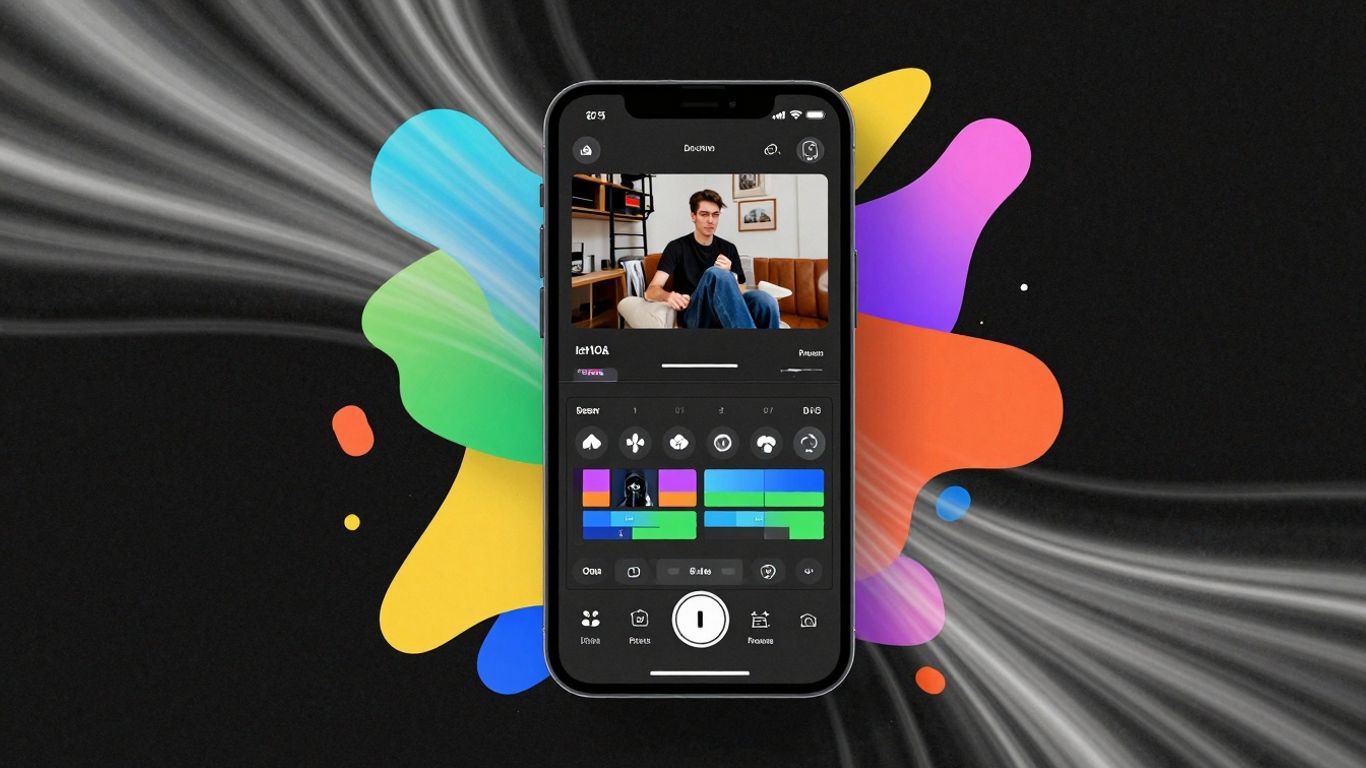
Making cool videos for social media, especially Instagram Reels, is a big deal now. It feels like everyone is trying to make their content stand out. I've been trying out a bunch of apps to see which ones are actually good for making these short videos without costing an arm and a leg. Some are super simple, others have way more features than I know what to do with. This article talks about some of the best free reel maker app options I found that can help you make videos that actually look good.
Key Takeaways
- InShot is a solid choice for beginners, offering easy editing and new AI tools, though a watermark appears in the free version.
- CapCut is a powerful free option with AI features and trending templates, but keep an eye on its pricing and terms.
- For Mac users wanting advanced features, Final Cut Pro is a professional-grade tool with impressive AI capabilities.
- VN Video Editor provides advanced editing controls completely free, making it a great no-cost option for detailed work.
- Wave.Video is excellent for turning longer videos into short clips, perfect for repurposing content quickly.
InShot
InShot is a really solid choice if you're just starting out with making videos for social media, or even if you're a bit more experienced and just want something quick and easy. It’s got this super simple interface that doesn't overwhelm you, which is great because, let's be honest, some video apps can be a total headache. You can easily add text, mess with fonts and colors, and throw in some transitions to make your clips flow better. It's especially good for those quick edits that still need to look professional.
What I like is how it handles basic stuff like trimming clips, adding music, and layering different audio tracks. Plus, they've been adding some cool AI features lately, like auto-captions that save you ages of typing, and even background removal. They also have some neat AI visual effects, like changing the sky in your video or making things look bigger – pretty fun stuff!
Here’s a quick rundown of what makes InShot stand out:
- User-Friendly Interface: Super easy to pick up, even if you've never edited a video before.
- AI-Powered Tools: Auto-captions, background removal, and cool visual effects are available.
- Quick Export: Gets your videos ready for social media fast.
- Customization Options: Plenty of ways to add text, filters, and transitions.
While the free version does put a watermark on your videos and some of the fancier tools are behind a paywall, the overall value is pretty good. It's a great way to get started without spending a fortune on more complex software. You can find out more about its features on their website.
It's not quite as powerful as some of the desktop programs, but for making Reels and TikToks on the go, it's hard to beat. You can get your raw footage turned into something polished in just a few minutes, which is exactly what you need when you're trying to keep up with the fast pace of social media.
CapCut
CapCut has really blown up, hasn't it? It’s become one of those go-to free apps for making quick social media videos, especially for Reels and TikTok. In 2025, it’s loaded with AI stuff like auto-captions, background removal, and even templates that sync up with popular sounds. It makes whipping out content that feels ready for the algorithm pretty easy.
But, there are a few things to keep in mind before you make it your main editing tool. First off, the Pro version got more expensive. It’s now around $19.99 a month in a lot of places, and they’ve stopped offering free cloud storage, which you now have to pay extra for. Also, there have been some questions about their terms of service. They seem to want pretty broad rights to the content you upload, even if you delete your account later. This is something to really think about if you’re doing work for clients or commercial projects.
CapCut’s popularity is undeniable, especially for creators looking for quick, AI-driven editing. However, potential users should carefully review the updated pricing and terms of service, particularly concerning content ownership and data privacy, before committing to professional use.
Here’s a quick look at what you get:
- AI-Powered Features: Auto-captions, script-to-video, background removal, and smart templates.
- Trending Content: Access to a massive library of templates and audio synced with current trends.
- User-Friendly Interface: Generally easy to pick up, even for beginners.
- Free Functionality: The free version still packs a good punch for basic editing needs.
Despite the pricing changes and the content rights concerns, CapCut is still a strong contender if you want those AI shortcuts and access to trending formats without spending a dime upfront. Just be aware of the potential downsides, especially for any serious business or client work.
Final Cut Pro
Final Cut Pro is Apple's big gun for video editing, and it's definitely aimed at folks who are serious about their craft. It's got all the professional-level tools you'd expect, and Apple has been busy adding some smart AI features. Things like object tracking, automatic reframing, and even detecting scene cuts are super handy, especially if you're trying to take a horizontal video and make it work for vertical formats like Reels.
On a Mac, you get the full power of a desktop editor. It's really fast, especially on newer Apple Silicon chips, and you can do multi-cam editing and get really detailed with color grading. It's a one-time purchase, which sounds good, but there's a bit of a learning curve and the initial cost is pretty high.
Now, the iPad version is surprisingly capable. The touch interface works well for making quick edits on the fly, and those AI tools make trimming and adjusting shots almost effortless. It doesn't have every single feature from the Mac version, but for editing on the go with pro-level tools, it's a solid choice and much more affordable.
Here's a quick look at what you get:
- Professional-grade editing: Advanced tools for precise control.
- AI-powered features: Object tracking and smart reframing save time.
- Optimized performance: Blazing fast on Macs with Apple Silicon.
- Intuitive iPad interface: Easy to use for on-the-go editing.
While Final Cut Pro offers top-tier editing capabilities and impressive AI features, its steeper learning curve and higher initial cost make it more suited for experienced editors rather than casual social media creators just starting out. The Mac version is a significant investment, while the iPad version offers a more accessible entry point for pro tools.
Pricing:
- Mac: $299 (one-time purchase)
- iPad: $4.99/month or $49/year
VN Video Editor
VN Video Editor is a solid choice if you're looking for a free app that packs a punch with advanced editing features. It really feels like you're using desktop software, but right there on your phone. You get things like HSL color grading, which is great for fine-tuning the look of your clips, and you can even import LUTs for a specific cinematic style. Plus, the keyframe animation and picture-in-picture options give you a lot of creative control for making your Instagram Reels look professional.
What I like about VN is that it doesn't hold back on features just because it's free. You can work with multiple layers, which is super helpful for complex edits, and the trimming tools are pretty precise. It's not quite as simple to pick up as some other apps, and the interface might not be as slick as CapCut's, but if you're willing to spend a little time learning its ropes, the results are totally worth it. It's a powerful tool for anyone wanting pro-level results without the price tag.
Here’s a quick rundown of what makes VN stand out:
- Completely Free: No watermarks, no hidden costs, just pure editing power.
- Advanced Tools: Keyframe animation, speed curves, and multi-layer timelines.
- Color Grading: HSL controls and LUT import for professional color work.
- User-Friendly (with a learning curve): While not the absolute simplest, it's manageable for dedicated users.
VN Video Editor offers a surprisingly deep editing experience for a free application. It bridges the gap between basic mobile editors and complex desktop software, making it accessible for creators who want more than just simple cuts and filters. The ability to fine-tune colors and animate elements with keyframes really sets it apart in the free app space.
It's a fantastic option for creators who want to experiment with more sophisticated editing techniques without shelling out cash. You can really make your videos pop with the tools available here.
Splice
Splice is a solid choice if you're looking for a mobile app that lets you do multi-layer editing without getting bogged down by a super complicated interface. It's a great example of how a custom mobile app development solution can combine powerful editing capabilities with an easy-to-use experience. It's got some neat AI features, like audio cleanup that can really help if you've got background noise, and smart trimming to quickly cut down clips. I found the music and sound effects library pretty extensive, which is always a plus for making videos feel more dynamic.
The multi-track editing makes it easier to sync up audio and visuals, giving your Reels a more polished feel. However, it's not perfect. When I tried editing longer or more complex videos, the app sometimes lagged a bit. Also, the subscription cost is a bit higher compared to some other options out there, so keep that in mind.
Here's a quick look at what Splice offers:
- Multi-layer Editing: Build more complex video stories with multiple tracks.
- AI Audio Cleanup: Helps reduce unwanted background noise.
- Smart Trimming: Quickly cut and refine your video clips.
- Extensive Library: Access a large collection of music and sound effects.
While Splice offers a free version, unlocking its full potential, especially the advanced editing features and larger asset library, requires a premium subscription. It's a good option for creators who want more control on their phone and are willing to pay for it. You can find out more about mobile video editing apps to compare options.
Pricing:
- Free Version: Available with basic features.
- Premium Subscription: Starts at $4.99/month.
KineMaster

KineMaster is a pretty solid option if you're looking for a mobile video editor that packs a punch. It's got a lot of features that you'd usually only find on desktop software, right there on your phone. They've even added some cool AI stuff like background removal and auto-generated subtitles, which honestly makes creating polished videos so much easier. No more fiddling with separate apps for those tasks.
When I played around with it, the timeline editing felt really precise. You can layer multiple videos, text, and audio tracks, which gives you a lot of creative freedom. Plus, there's a huge selection of effects and transitions to play with. It's definitely more flexible than some of the simpler apps out there if you like to have fine-tuned control over your edits.
Here's a quick rundown of what stands out:
- AI Background Removal: Easily cut out subjects from their backgrounds.
- Auto Subtitles: Quickly generate captions for your videos, making them more accessible.
- Multi-layer Editing: Combine various video, text, and audio elements for dynamic content.
- Extensive Effects & Transitions: Plenty of options to make your videos visually interesting.
The free version does come with a watermark, which can be a bit of a bummer if you're aiming for a super clean look. And if you decide to go for the premium plan, it's on the pricier side compared to some other mobile editors out there. It can also feel a little overwhelming at first if you're new to video editing, but the power it offers is pretty impressive.
Pricing:
- Free: Includes a watermark.
- Premium: $7.99/month or $51.99/year.
Adobe Premiere Rush
Okay, so Adobe Premiere Rush used to be a pretty solid choice for folks who liked working across different devices and were already in the Adobe ecosystem. It had some neat templates and transitions, plus a few smart features that made editing a bit quicker.
But here's the kicker: Adobe has decided to stop offering Premiere Rush to new users. Starting September 30, 2025, you won't be able to download it anymore, and subscriptions won't renew. If you already have it, you can keep using it until September 2026, but don't expect any new features or updates.
This means that while Premiere Rush might still work for you if you've already got it installed, it's really not the best move for anyone just starting out or looking for a long-term editing solution. Adobe is pointing people towards Premiere on iPhone or the full Premiere Pro on desktop instead. For new creators, sticking with apps like CapCut or InShot is probably a much safer bet for the future.
So, if you're new to making Reels and looking for an app that will be around and supported for a while, Premiere Rush isn't it anymore. It's a shame because it did have some good points, like:
- Easy integration with other Adobe Creative Cloud apps.
- A workflow that worked on both desktop and mobile.
- Simple templates and transitions that got the job done.
But with its discontinuation, it's hard to recommend for new projects. You're better off exploring options that are actively being developed and supported.
Wave Video
Wave Video is a pretty neat tool if you've got longer videos lying around and want to chop them up for social media. Think podcasts, webinars, or even just long interviews. Instead of starting from scratch, Wave Video helps you pull out the best bits automatically. It's great for turning that hour-long recording into a bunch of short clips perfect for TikTok or Instagram Reels.
What I liked is how it can automatically add captions, which is a huge time-saver. Plus, it can resize your video for different platforms, so you don't have to fiddle with that yourself. It’s not really for making videos from text, but if you already have footage, this is a solid choice.
Here's a quick look at what it offers:
- Automatic Clipping: Turns long videos into multiple short clips.
- Captioning: Adds captions automatically for platforms like TikTok and Instagram.
- Aspect Ratio Adjustment: Resizes videos for different social media formats (9:16, 16:9, 1:1).
- Editing Tools: Lets you add text, music, and effects to your clips.
Wave Video really shines when you need to repurpose existing video content quickly. It takes the guesswork out of finding those engaging moments and getting them ready for short-form platforms. It's a straightforward way to get more mileage out of your recordings without needing advanced editing skills.
They have a free plan to get you started, which is always nice. Then there are paid options if you need more features or create a lot of content.
Reeler AI
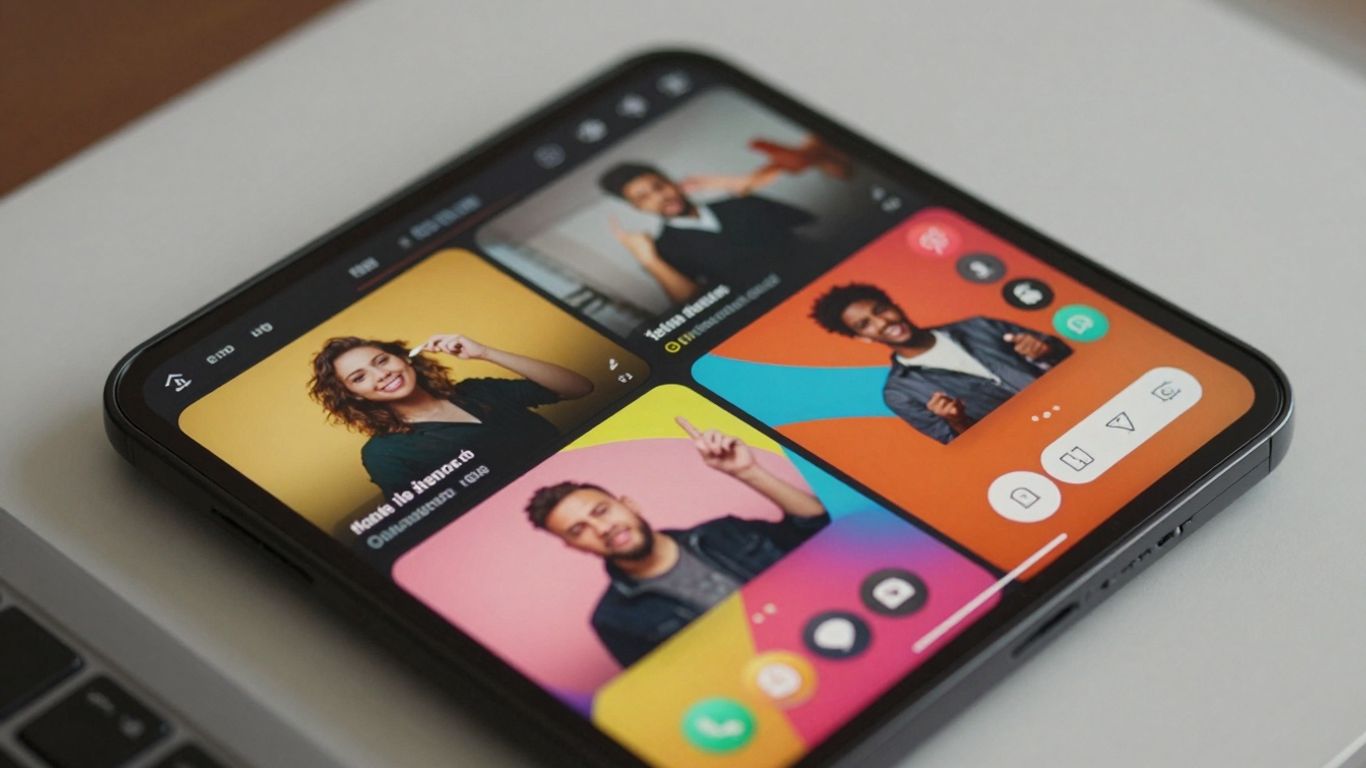
Reeler AI is a tool that aims to simplify the process of creating Instagram Reels and TikToks. If you're someone who needs to churn out short-form video content quickly without getting bogged down in complex editing, this might be worth a look. I found that you can just type in your ideas, and it generates videos pretty fast. It's designed so you don't really need any editing experience to get something that looks decent. Creators looking for even more accessible solutions can explore an ai video generator no sign in option to produce videos instantly without the hassle of creating an account or navigating a complex setup process.
One thing I liked was the variety of voices you can choose from for the voiceovers. It helps make the content feel a bit more personal, depending on what you're going for. Plus, it has features to adjust subtitles for different platforms, which is handy.
- Quickly turn text into Reels or TikToks.
- Adjust subtitles easily for various social media formats.
- Select from different AI voices for narration.
- Direct sharing to platforms like TikTok and Instagram.
Reeler AI offers a free plan that gives you 3 free videos, which is a good way to test it out. After that, there's a Starter Plan at $9.99/month. It's definitely a tool to consider if you're looking for speed and simplicity in your video creation workflow, especially if you're not a professional editor. You can get started with Reeler AI and see if it fits your needs.
MakeShorts
MakeShorts is a pretty neat tool if you're looking to quickly turn longer videos into those short, punchy clips that do well on platforms like YouTube Shorts, TikTok, and Instagram Reels. It uses AI to find the most interesting parts of your video, which is a huge time-saver. I've seen people use it to chop up hour-long webinars into a bunch of smaller videos without having to watch the whole thing themselves.
One of the standout features for me is the autofocus cropping. It makes sure the main person talking stays in the frame, even when it's changing the video's orientation for different social media sites. Plus, it can automatically add captions and even suggest descriptions and hashtags, which honestly, is a lifesaver when you're trying to get content out fast. It's definitely geared towards creators who need to produce a lot of short-form content quickly.
Here's a quick look at what it offers:
- AI Clipping: Automatically identifies and extracts key moments from longer videos.
- Autofocus Cropping: Keeps the subject centered, adapting to various social media aspect ratios.
- AI-Generated Subtitles & Captions: Saves time by automatically adding text overlays and social media text.
- Repurposing Content: Efficiently converts existing long-form videos into multiple short clips.
MakeShorts really shines when you have existing video content that you want to quickly adapt for social media. It's not so much for creating videos from scratch, but for making your existing footage work harder for you across different platforms. It's a solid choice for YouTubers and anyone focused on short-form content creation. You can check out other video editing options like VN Video Editor if you need more hands-on control.
Zebracat
Okay, so let's talk about Zebracat. If you're tired of spending hours editing videos, this might be your new best friend. It's designed to turn your text content, like blog posts or articles, into videos super fast. We're talking about getting a finished video in about a minute, which is pretty wild when you think about it.
The main selling point here is speed and simplicity. You don't need to be a video editing wizard to use it. It's built for people who want to get their message out there in video format without a steep learning curve. This is especially helpful if you're an influencer or a business owner who needs to produce a lot of content regularly.
Here's a quick rundown of what it does:
- Converts text into video automatically.
- Adds voiceovers and music.
- Provides templates to make things look polished.
- Focuses on creating short-form videos suitable for social media.
It's kind of like having a personal video editor on standby, ready to go whenever you have a piece of text you want to share visually. You can even try Zebracat for Free to see if it fits your workflow. It's a solid option if you're looking to increase your video output without a huge time commitment.
The idea is that most people these days prefer watching videos over reading. Zebracat taps into that by making video creation accessible to everyone, regardless of their technical skills. It's all about getting your content seen and heard more easily.
FlexClip
FlexClip is a pretty neat online tool that makes creating social media videos feel less like a chore. If you're someone who just wants to get a video made quickly without a steep learning curve, this might be your jam. You can basically type in what you want your video to be about, and FlexClip helps put it together. It’s got a big library of stock footage, music, and images, which is super handy when you don't have your own assets. I found the text animations to be a nice touch too; they add a bit of flair that can grab someone's attention as they're scrolling.
One thing to keep in mind is that while the script generator is a good starting point, it sometimes spits out pretty basic ideas. You'll probably want to tweak it a bit to make it sound more like you or fit the specific vibe you're going for. But for churning out visually sharp, quick videos for platforms like TikTok or Instagram, it really does the job.
Here's a quick look at what FlexClip offers:
- Text-to-Video Conversion: Turn your written ideas into video clips fast.
- Extensive Media Library: Access a wide range of clips, music, and images.
- Customizable Text Animations: Add dynamic text effects to make your videos pop.
- Script Generation: Get a starting point for your video's narrative.
FlexClip is a good option for beginners or casual creators who need to produce social media content efficiently. Its user-friendly interface and ready-to-use assets mean you can go from idea to finished video in a surprisingly short amount of time, though some manual refinement might be needed for truly unique content.
FlexClip has a free plan, which is great for trying it out. If you need more features or want to remove watermarks, they have paid plans starting at $9.99 per month.
Filmora
Filmora is a pretty solid choice if you're looking to whip up some eye-catching social media videos without spending ages in front of your screen. I've used it myself when I needed content that looked good but I didn't have a lot of time to edit.
One of the standout features for me is the AI text-to-video tool. You just type in a few words about what you want, and it spits out some video options that are actually quite polished and ready to go. It's a real game-changer when you're on a tight deadline. Plus, the Auto Reframe tool is super handy; it automatically adjusts your video so it looks good on different platforms, whether it's a vertical Reel or a horizontal video. They also have a big library of effects, music, and transitions, which makes it easy to add that professional flair to your clips.
Filmora makes it simple to turn your text ideas into video content quickly, and its auto-reframing feature is a lifesaver for social media.
Here's a quick look at what makes Filmora a good pick:
- AI Text-to-Video: Just input some text, and the AI generates video clips for you.
- Auto Reframe: Automatically adjusts video dimensions for different social media platforms.
- Stock Library: Access to a wide range of effects, music, and transitions.
- Direct Sharing: You can often post your finished videos directly to platforms like Instagram or TikTok.
It's definitely one of those apps that balances ease of use with some pretty powerful features, making it great for short-form content creators.
Clipchamp
Clipchamp is a pretty neat video editor, especially if you're trying to whip up social media content without a ton of fuss. It's got this AI thing called Auto Compose that can take your raw footage and basically put it together for you. I tried it when I was in a rush for some TikTok clips, and honestly, it saved me a bunch of time. It just churned out a video that was ready to go.
One of the standout features for me was the auto-captions. They're surprisingly accurate and work in a ton of languages, which is super important for keeping people watching. Plus, the resize video tool is a lifesaver. You know how you need different sizes for Instagram, TikTok, and whatever else? Clipchamp handles that automatically, so you don't end up cutting off important bits. It's a solid choice for making marketing videos efficiently.
Here's a quick look at what it offers:
- Auto Compose: Lets AI assemble your clips into a finished video.
- Auto Captions: Generates accurate subtitles automatically.
- Resize Video: Easily adjusts aspect ratios for different platforms.
- Text-to-Speech: Converts written text into voiceovers.
While it's got a lot going for it, especially the AI features that speed things up, sometimes the text-to-speech needs a little tweaking to sound completely natural. But for getting content out quickly and looking decent, it's a strong contender.
Boosted
Boosted is a pretty straightforward tool if you need to whip up social media videos quickly. I used it recently when a client needed some campaign materials done fast, and the templates really made things easy. You start with a decent design and then just tweak the colors, fonts, and add your logo. It’s not complicated at all.
What I really liked was how simple it was to resize videos for different platforms. You know, so you don't end up with those weird blank spaces on the sides. Plus, Boosted has a stock library with good quality video clips, which is a nice bonus if you don't have your own footage. The music selection was a bit limited for my taste, but you can always upload your own tracks, so it’s not a huge deal.
If you're in a pinch and need to make marketing videos that look polished without needing to be a video editing wizard, Boosted is a solid choice.
- Customizable Templates: Start with professional designs and easily adapt them.
- Platform Resizing: Effortlessly adjust video dimensions for various social media sites.
- Stock Library Access: Use high-quality video clips without extra cost.
- Direct Social Sharing: Post your creations straight to social media.
This tool is great for small businesses or anyone who needs to produce content on a tight schedule. It cuts down on the time spent fiddling with complex software.
BEAT
BEAT is a reel maker app that's pretty straightforward, especially if you're an iPhone user looking to jazz up your Instagram content. It focuses a lot on templates and music, which is a big part of what makes reels pop these days. You pick a template, add your own photos, and the app helps sync them up with popular music. It's designed to make creating reels less of a chore, even if you're not super tech-savvy. They update their templates pretty often, so you can keep your feed looking fresh.
One of the cool things is the auto-sync feature. It lines up your pictures with the beat of the music, which can make your videos look really dynamic without you having to manually time everything. This free Android application empowers users to craft stunning, professional reels, personalize posts and stories, and produce imaginative videos suitable for platforms like TikTok.
BEAT does have in-app purchases for subscriptions, which unlock more features or longer access. You can find options like weekly, monthly, or yearly plans.
- Choose from a variety of templates: They have a decent collection, and they add new ones regularly.
- Sync photos with music: The auto-sync feature is a big plus for making videos look polished.
- Direct sharing: You can share your creations straight to Instagram.
The app aims to simplify the process of making eye-catching reels. It's a good option if you want to quickly put together something that looks good, especially with the music integration.
While it's available on iPhone, it's worth checking out if you're looking for a template-driven approach to social media video creation.
Wrapping It Up
So, there you have it. Making cool videos for social media doesn't have to cost a fortune or take up your whole weekend. We looked at a bunch of apps, from the super simple ones that are great for beginners to the more advanced options that give you a lot of control. Whether you're just starting out or you've been making videos for a while, there's definitely a free reel maker out there that fits what you need. Give a few of them a try and see which one feels right for you. Happy creating!
Frequently Asked Questions
What's the best free app to make Instagram Reels?
CapCut is a fantastic free choice for making Reels. It's packed with cool features like filters, transitions, and music, and best of all, it doesn't add a watermark to your videos.
Can I edit my Reels on a computer?
Yes, you can! Apps like Adobe Premiere Rush and Final Cut Pro let you edit videos on your computer, giving you more control and advanced tools for your projects.
Which app is easiest for beginners to use?
InShot is super easy for beginners. Its layout is simple and friendly, making it straightforward to edit videos without getting confused.
Do these apps work for the vertical Reel format?
Absolutely! Most apps made for Instagram, like CapCut, InShot, and VN Video Editor, are designed for the 9:16 vertical video style, perfect for Reels and Stories.
How can I add music to my Reels using these apps?
Apps such as Splice, KineMaster, and CapCut let you add music. You can either upload your own songs or use the music libraries built into the apps to make your videos sound great.
Are there free apps that don't put watermarks on my videos?
Yes, CapCut and VN Video Editor offer free versions that don't leave watermarks. For apps like InShot or KineMaster, you usually need to pay to remove the watermark.








Privacy is important to us, so you have the option of disabling certain types of storage that may not be necessary for the basic functioning of the website. Blocking categories may impact your experience on the website. View Our Privacy Policy


