
Best Reel Maker for Instagram: Free Tools & Tips for 2025
Making Instagram Reels that actually get noticed can feel like a challenge, right? You've got the ideas, but getting them to look polished and professional takes the right tools. Since Reels are a big deal for getting seen on Instagram these days, picking a good reel maker for Instagram is pretty important. Whether you're just starting out or you've been at it for a while, there are tons of apps and software out there that can help. We've checked out a bunch of them to give you a rundown of the best options for 2025, covering everything from super simple mobile apps to more advanced desktop programs.
Key Takeaways
- Choosing the right reel maker for Instagram in 2025 is key for boosting engagement and reach, with tools like CapCut, LumaFusion, and Canva leading the pack.
- Free options like CapCut and VN Video Editor offer robust features for editing Instagram Reels without a price tag, making them great for budget-conscious creators.
- For those needing more control, desktop editors such as DaVinci Resolve and Final Cut Pro provide professional-level tools, while mobile-first apps like InShot and Splice are perfect for quick, on-the-go edits.
- When selecting an app, consider your skill level, whether you prefer mobile or desktop editing, the specific features you need (like AI tools or templates), and the export quality.
- To make your Reels stand out, focus on clear editing, good audio syncing, and using features that align with current trends, all of which can be achieved with the right reel maker for Instagram.
1. CapCut
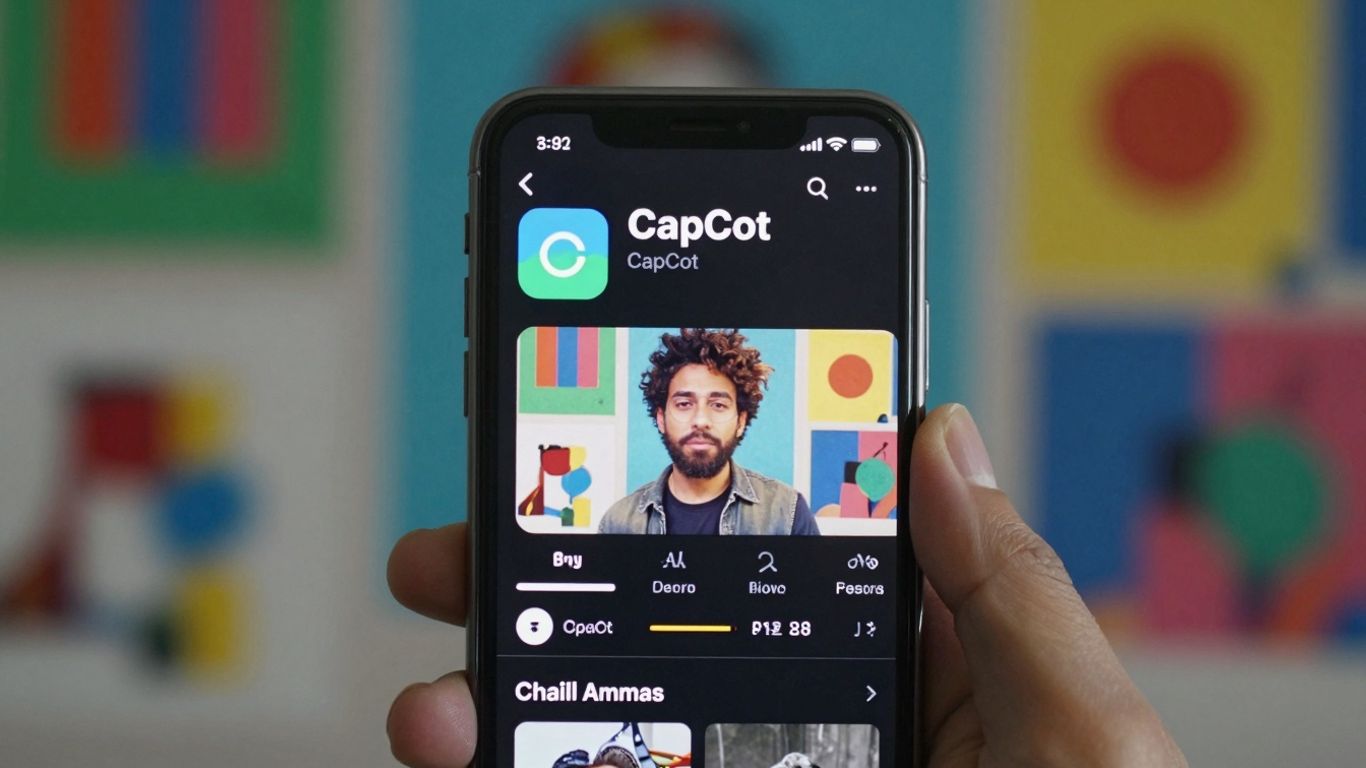
CapCut has become a go-to for many creators looking to make Instagram Reels without spending a dime, and honestly, it's pretty impressive what you can do with it for free. It's packed with features that make editing feel less like a chore and more like a creative sprint. Think AI-powered auto-captions that actually work, easy background removal for those slick effects, and a whole bunch of templates that sync up with trending sounds. It really speeds things up, which is great when you're trying to jump on a trend.
However, it's not all sunshine and rainbows, especially if you're thinking about using CapCut for more serious, professional work. There have been some changes that are worth noting. For starters, the Pro version got a price hike in many places, and they've removed the free cloud storage, which is a bit of a bummer. You now have to pay extra for that. Also, there's been some chatter about their updated Terms of Service. ByteDance, the company behind CapCut, now has pretty broad rights to the content you upload, even if you delete your account later. This is something to really think about if you're doing client work or anything commercial.
Plus, remember that brief ban scare in the U.S. back in 2025? While it's back now, ByteDance is working on a separate U.S. version to meet regulations. This could mean features might differ between regions down the line. It's a lot to keep in mind.
Despite these potential drawbacks, CapCut still offers a ton of editing power for free. If you're just starting out or want quick, trendy edits, it's a solid choice. Just be aware of the terms and pricing changes, especially for professional projects.
Here's a quick rundown of what makes CapCut stand out:
- AI Features: Auto-captions, background removal, script-to-video generation.
- Templates & Trends: Syncs with trending audio and offers a vast library of templates.
- Ease of Use: Intuitive interface makes editing fast and accessible.
- Direct Sharing: Option to post directly to Instagram Reels.
CapCut's free version remains a powerful tool for quick, engaging Reels, but professional users should carefully review the terms and pricing for Pro features.
2. InShot
InShot is a really popular choice for editing Instagram Reels, and for good reason. It's super user-friendly, which is a big plus if you're just starting out or don't want to spend ages learning a complicated program. You can easily trim clips, add music, slap on some text, and even throw in stickers. It feels like it was made with social media in mind, so getting your videos looking good for Instagram is pretty straightforward.
One of the things I like about InShot is how many effects it has. You can play around with different filters, transitions, and even some cool animated stickers. They've also got features like speed control, so you can speed up parts of your video or create those trendy slow-motion moments. It's great for adding a bit of flair without making things too complex. If you're looking to make your Reels pop, InShot is definitely worth checking out.
Here's a quick rundown of what you can do:
- Trim and cut your video clips.
- Add text overlays and fun stickers.
- Incorporate music and sound effects.
- Apply various filters and transitions.
- Adjust video speed for dynamic effects.
While InShot is fantastic for quick edits and adding visual interest, it's worth noting that the free version does come with a watermark. You can remove it by upgrading to the Pro version, which also unlocks more features. It's a common trade-off with many free editing apps, but it's good to be aware of.
It's a solid option for creators who want to produce polished-looking Reels without a steep learning curve. The app is available on both iOS and Android, making it accessible to a wide range of users.
3. VN Video Editor
VN Video Editor is a solid choice if you're looking for a free app that gives you a lot of control over your edits, kind of like what you'd get on a computer. It doesn't have a watermark, which is a big plus, and it lets you do things like color grading with HSL and even import LUTs if you know what those are. For Reels, this means you can really fine-tune the look of your videos.
I found it pretty good for putting clips together, adding text, and making transitions. It supports multi-layer editing, so you can stack different video and audio tracks, which is great for making Reels that have a bit more going on. It also handles 4K video at 60 frames per second, which is pretty impressive for a free mobile app.
Key Features:
- Multi-layer timeline: Build complex edits with multiple video and audio tracks.
- HSL Color Grading & LUT Support: Achieve specific color looks for your videos.
- Keyframe Animation: Add dynamic movement and effects to your clips.
- Picture-in-Picture Mode: Overlay videos for picture-in-picture effects.
- 4K 60fps Export: High-quality output for your finished Reels.
While it's free, it does have ads, and sometimes syncing with cloud storage can be a bit spotty. Also, compared to super simple apps, there's a bit more of a learning curve here. You'll need to spend a little time figuring out where everything is, but once you get the hang of it, the results can look really professional.
VN Video Editor strikes a good balance between being completely free and offering advanced editing features. It's a powerful tool for creators who want more creative freedom without paying a subscription, though it might take a bit longer to learn than some of the more basic options out there.
4. Canva Video Editor
Canva has really stepped up its game when it comes to video editing, and it's a solid choice for making Instagram Reels. If you're already using Canva for graphics, this feels like a natural extension. It's got this huge library of templates specifically made for Reels, which is super handy when you're trying to jump on a trend or just need a starting point.
The drag-and-drop interface makes it incredibly easy to put your clips together, add text, and throw in some music. Plus, their AI features are pretty neat. The "Magic Switch" can resize your designs for that perfect 9:16 aspect ratio in a snap, and "Beat Sync" is a lifesaver for matching your video to the music's rhythm without all the manual fiddling. It’s great for keeping your brand looking consistent too, with tools to manage your brand colors and fonts.
Here’s a quick look at what makes it work:
- Template Library: Thousands of pre-made templates for various social media platforms, including Reels.
- AI Tools: Features like Magic Switch (resize) and Beat Sync (auto-sync to music) speed up the editing process.
- Brand Kit: Easily maintain visual consistency across all your videos.
- Collaboration: Share designs and get feedback from team members.
While it’s fantastic for quick, on-brand Reels, it might not be the go-to if you're aiming for super complex, cinematic edits with advanced transitions. But for most everyday Reels creators, especially those already in the Canva ecosystem, it’s a really efficient and user-friendly option.
Canva offers a free version that's quite capable for basic Reel creation. If you need more advanced features, like access to premium templates and stock assets, or more storage, their Pro plan is reasonably priced and unlocks a lot more potential.
5. Descript
Descript is a bit of a game-changer, honestly. Instead of messing around with timelines and all that fiddly stuff, you edit your video by editing the text transcript. It's like editing a Word document, but for video. You just delete the words you don't want, and poof, the video and audio get cut right there. Super weird at first, but once you get it, it's incredibly fast, especially if you're doing a lot of talking-head videos or anything with a voiceover.
It also has some pretty neat AI features built-in. There's this thing called Studio Sound that can clean up background noise, which is a lifesaver if you're not filming in a quiet studio. And Overdub lets you clone your voice to fix small mistakes or add words you didn't actually say. It sounds a little sci-fi, but it works surprisingly well for minor tweaks.
Here's a quick rundown of what makes it stand out:
- Text-Based Editing: Edit video by editing text. Seriously.
- AI Audio Tools: Studio Sound for noise removal and Overdub for voice cloning.
- Automatic Transcription: Gets your video into text format automatically.
- Screen Recording: Built-in tool for recording your screen.
Descript really shines when your content relies heavily on spoken word. If you're making tutorials, vlogs, or any kind of video where clear audio and easy corrections are key, this tool can save you a ton of time. It's not the best for super complex visual effects, but for getting your message across clearly and quickly, it's hard to beat.
It's a desktop-only application, and the free version does put a watermark on your exports, which is a bit of a bummer. But if you're serious about making a lot of Reels with spoken content, the paid plans, which start around $16 a month, are definitely worth looking into.
6. LumaFusion
Alright, let's talk about LumaFusion. If you're serious about making your Instagram Reels look polished and professional, especially if you're working on an iPad or iPhone, this is a tool you'll want to check out. It really brings a desktop editing experience right to your mobile device. Think of it like having a mini Final Cut Pro in your pocket.
LumaFusion gives you a lot of control. You get multiple tracks for video and audio, which is super handy for layering effects or adding voiceovers. The color correction tools are pretty advanced too, and you can even use LUTs (Look-Up Tables) to get specific cinematic looks. It's not just drag-and-drop; you can really fine-tune your edits here.
Here's a quick rundown of what makes it stand out:
- Multi-track editing: Work with up to 6 video and audio tracks simultaneously.
- Advanced color correction: Fine-tune your visuals with precise controls and LUT support.
- Keyframing: Animate properties like position, scale, and opacity for dynamic effects.
- Multicam synchronization: If you shoot with multiple cameras, this feature is a lifesaver.
It's definitely a step up from the simpler apps, and there's a bit of a learning curve involved, especially if you're new to video editing. But for the power it offers on a mobile platform, it's a solid choice for creators who want that pro-level finish. It's a one-time purchase, which is nice, though they do have an optional subscription for extra features.
While it's primarily an iOS app, its capabilities are so robust that many creators consider it the go-to for mobile video production, rivaling desktop software in many aspects. The investment in learning it pays off with significantly more professional-looking results for your Reels.
If you're looking for a powerful mobile editor that doesn't hold back on features, LumaFusion is worth exploring. You can find out more about its capabilities on their website.
7. Splice
Splice is a pretty solid choice if you're looking to do some more involved editing right on your phone. It’s not as complicated as some desktop software, but it gives you more options than just the basic stuff. I found it really easy to get the hang of, which is a big plus when you just want to get a Reel made.
One of the things that stood out to me was the multi-layer editing. This means you can stack different video clips, audio tracks, and effects on top of each other. It really helps make your Reels feel more professional and dynamic, especially if you're trying to sync up visuals with music or add voiceovers.
Splice also has some neat AI features that can help clean up your audio. If you've got background noise or want to make sure your voiceover is clear, this can be a real time-saver. Plus, they have a pretty big library of music and sound effects, which is always handy.
- Multi-layer editing: Build complex scenes with multiple video and audio tracks.
- AI audio cleanup: Improve the sound quality of your recordings.
- Extensive media library: Access a wide range of music and sound effects.
- Intuitive interface: Easy to learn and use, even for beginners.
While Splice offers a lot of creative control, it can sometimes get a bit sluggish when you're working with longer or more complicated videos. It's something to keep in mind if your Reels tend to be on the longer side.
Splice does have a free version, but to get the most out of it, you'll likely want to consider their premium subscription. It's a bit pricier than some other mobile apps out there, but for the features you get, it might be worth it if you're serious about your mobile video editing.
8. PicsArt
PicsArt is a pretty fun app if you're looking to add some flair and personality to your Instagram Reels. It's got this massive library of stuff – think animated stickers, AR masks, and filters galore. It feels less like a serious editing suite and more like a creative playground, which can be awesome for certain types of content.
What really stands out is the sheer volume of assets you get. You can easily find something to make your Reel pop, whether you're going for a trendy aesthetic or something totally unique. Plus, it has music synchronization, so you can get your visuals lined up with the beat, which is always a plus for Reels.
However, if you're someone who needs super precise control over every little detail, like tweaking a clip by a single frame or fine-tuning audio levels with extreme accuracy, PicsArt might feel a bit limiting. It's definitely geared more towards quick, creative edits rather than complex, multi-layered projects.
- Vast Asset Library: Access to millions of stickers, filters, and effects.
- Creative Tools: AR masks and animated elements add a dynamic touch.
- Community Templates: Get inspired and start quickly with pre-made designs.
- Music Sync: Align your video clips with the rhythm of your chosen audio.
If your goal is to create eye-catching, visually engaging Reels without getting bogged down in technicalities, PicsArt is a solid choice. It's great for lifestyle, beauty, or any creator who wants to inject a lot of personality into their short-form videos quickly.
PicsArt offers a free version that's quite capable for basic Reel creation. For those who want even more, the Pro plan is available, costing around $15 per month.
9. KineMaster
KineMaster is a mobile video editor that really gives you a lot of control right from your phone. It's got this multi-layer editing feature, which means you can stack up video clips, text, and audio tracks to make your Reels more complex and interesting. Think of it like having a mini-studio in your pocket.
One of the cool things it offers is a green screen effect, which is pretty neat if you want to put yourself or your subject in front of a different background. Plus, it has a bunch of transitions and animation tools to make your videos look more dynamic. They've also added some AI features like background removal and auto subtitles, which can save you a ton of time.
When I played around with it, the timeline editing felt pretty precise. It’s good for when you want to get things just right, especially with all those different layers. It’s definitely more powerful than some of the simpler apps out there.
However, there are a couple of things to keep in mind. The free version does come with a watermark, which can be a bit distracting. And if you want to get rid of it and unlock all the features, the Pro plan is a bit pricier compared to some other mobile editors.
- Multi-layer editing: Build complex scenes with multiple video, audio, and text tracks.
- Green screen (Chroma Key): Easily swap out backgrounds.
- Animation tools: Add movement to text and layers.
- AI features: Background removal and auto subtitles for polished results.
KineMaster is a solid choice if you're a creator who likes to have a lot of hands-on control over your edits and wants professional-level features on a mobile device. Just be prepared for the watermark on the free version or the cost of the premium subscription.
Pricing:
- Free version available (with watermark)
- Pro: $7.99/month or $51.99/year
10. FilmoraGo
FilmoraGo is another solid option if you're looking for a mobile-first video editor that doesn't skimp on features. It's known for its user-friendly interface, making it pretty accessible even if you're just starting out with video editing for your Instagram Reels. You get a good mix of templates, filters, and transition options that can help you put together something that looks polished without a ton of effort.
One of the things that stands out is its AI Cutout tool. This can be a real time-saver if you need to isolate subjects from their backgrounds. Plus, features like beat detection and auto-speed adjustments are great for syncing your video clips to music, which is pretty important for Reels. They also offer cloud sync, which is handy if you switch between devices a lot.
Here's a quick look at what it offers:
- Templates and Filters: Plenty to choose from to give your Reels a specific vibe.
- AI Cutout: Helps remove backgrounds easily.
- Beat Detection: Syncs your video to the rhythm of your chosen audio.
- Cloud Sync: Keep your projects accessible across devices.
While FilmoraGo is pretty good, it's worth noting that the free version does come with a watermark. You can remove it by upgrading, but it's something to consider. Some users also find it a bit pricier compared to other apps with similar features. Still, for brand managers or mobile businesses needing to create slick short videos quickly, it's definitely worth checking out. You can download Filmora and explore its capabilities.
FilmoraGo strikes a good balance between ease of use and having enough tools to make your Reels look professional. It's a great choice for creators who want to spend less time fiddling with complex software and more time creating engaging content.
11. Veed.io
Veed.io is a pretty neat online tool that makes editing videos right in your browser super easy. You don't need to download anything, which is a big plus if you're short on space or just want to get things done quickly. It's got a bunch of features that are really helpful for Instagram Reels.
One of its standout features is the automatic subtitle generator. Seriously, a lot of people watch videos with the sound off, so having accurate captions is a must. Veed.io listens to your audio and spits out text captions pretty fast. You can even change how they look – font, color, all that stuff – to match your vibe.
Beyond captions, Veed.io can also help you resize your videos to fit the Reel format perfectly. It's got tools for adding animations, transitions, and even removing background noise. If you're looking to make your videos more accessible and professional without a huge learning curve, this is a solid choice.
- Automatic Subtitle Generation: Transcribes audio to text captions quickly.
- AI Translation: Translates text and audio into over 125 languages.
- Smart Resizing: Adjusts videos for optimal Reel aspect ratios.
- Background Noise Removal: Cleans up audio with a single click.
Veed.io really shines when it comes to making your content understandable for a wider audience, especially with its translation and captioning tools. It's a web-based editor, so as long as you have a decent internet connection, you can get a lot done without installing heavy software.
12. Pictory
Pictory is an interesting option if you're looking to turn longer videos, like webinars or even just rambling thoughts, into shorter, punchier Instagram Reels. It uses AI to help find the most interesting parts of your video automatically. This can be a real time-saver if you've got a lot of footage to sift through.
It's particularly good for content that's more about information or thought leadership. Think educational clips or summaries of longer talks. The AI helps with things like adding captions automatically, which is a big plus for accessibility and engagement.
However, it's not the most flexible tool out there. If you're aiming for really unique visual styles or complex transitions, you might find Pictory a bit limiting. It's more about getting the core message out quickly and efficiently.
- Automatic Highlight Detection: The AI finds the best moments so you don't have to.
- Auto-Captioning: Makes your Reels easier to understand with automatic subtitles.
- Content Repurposing: Great for turning existing long-form video into short-form content.
Pictory shines when you need to quickly extract key moments from longer videos and present them as engaging Reels. It's less about creative flair and more about efficient content transformation.
13. Vizard.ai
Vizard.ai is a tool that really shines when you've got a lot of longer videos you want to chop up for Instagram Reels. Think podcasts, webinars, or even lengthy YouTube videos. It uses AI to automatically find the best bits and turn them into short, punchy Reels. This can save you a ton of time compared to manually sifting through hours of footage. It handles things like scene detection, adding captions, and making sure the clips flow well, which means less work for you after the AI does its thing.
It's a web-based platform, so you don't need to download any software, which is pretty convenient. Just upload your video, and let Vizard.ai work its magic. It's a solid option if your main goal is repurposing existing content efficiently. You can check out some of the best AI video editors to see how it stacks up against others.
Here's a quick look at what it offers:
- Automatic Clipping: AI identifies engaging segments from your long-form videos.
- Auto-Captioning: Adds subtitles to your Reels, making them more accessible.
- Scene Detection: Helps break down longer videos into logical short clips.
- Web-Based: No downloads required, accessible from any browser.
While it's great for speed and efficiency, some users find that the AI can sometimes miss the mark on creative control. You might need to do a bit of tweaking to get the exact feel you're going for. It's best suited for marketers or agencies looking to scale their content production without a huge time investment.
Vizard.ai is all about making the process of turning long videos into short, shareable clips as hands-off as possible. If you're drowning in content and need a quick way to get it onto Reels, this is definitely worth a look.
14. DaVinci Resolve
Okay, so DaVinci Resolve. This one's a bit of a beast, not gonna lie. It's the kind of software that professionals use, and for good reason. It's incredibly powerful, especially when it comes to color correction and visual effects. If you're looking to make your Reels look super polished, like something you'd see on a big screen, Resolve is definitely worth a look.
It's got this AI-powered Neural Engine that does some pretty neat stuff automatically. Think noise reduction, tracking faces, and even smartly reframing your video so it fits the vertical Reel format without you having to do all the fiddly work. It’s a big step up from just basic trimming and adding text.
Here’s a quick rundown of what makes it stand out:
- Advanced Color Grading: Seriously, the color tools are top-notch. You can tweak your footage to look exactly how you want.
- AI Features: Smart reframing and noise reduction save a ton of time.
- Fusion for Visual Effects: If you want to get fancy with graphics and effects, Fusion is built right in.
- Fairlight for Audio: Great audio tools are included, which is often overlooked but super important for good Reels.
Now, the downside? It needs a pretty decent computer to run smoothly, especially if you're working with high-resolution footage. And the interface? It can be a bit overwhelming when you first open it up. It’s not exactly a point-and-click kind of app for beginners.
DaVinci Resolve is free, which is amazing considering its capabilities. There's a Studio version you can buy, but honestly, the free version is more than enough for most Instagram Reels creators. It’s a steep learning curve, but the results can be incredible.
If you're serious about video editing and want to push your Reels to the next level, and you don't mind spending some time learning, DaVinci Resolve is a fantastic option. You can even find free DaVinci Resolve presets online to help you get started with professional looks.
15. Final Cut Pro
Alright, let's talk about Final Cut Pro. If you're on a Mac or an iPad and you're serious about making your Reels look super professional, this is a big one. Apple really put some thought into this, adding AI stuff like object tracking and smart reframing. That means it can automatically adjust your video for vertical formats, which is a lifesaver for Reels.
On the Mac side, you get all the bells and whistles. It's fast, especially if you have one of those newer Apple Silicon chips. You can do multi-cam editing, which is probably overkill for most Reels, but hey, it's there. The color grading tools are top-notch too. The only real downside is the price – it's a one-time purchase, but it's a chunk of change upfront, and it can take a bit to get the hang of everything if you're new to video editing.
Now, the iPad version is pretty cool too. It feels surprisingly powerful for a tablet app. The touch controls are pretty intuitive, and those AI features make trimming and getting the framing just right almost effortless. It doesn't have everything the Mac version does, but for editing on the go, it's a really solid choice, and the price is way more manageable.
- Professional-grade editing tools
- AI features for automatic reframing and object tracking
- Optimized performance on Apple hardware
- Available on both Mac and iPad
Choosing Final Cut Pro means investing in a powerful tool that can grow with your skills. While there's a learning curve, the results are often worth the effort for creators aiming for a polished look. It's a robust option for anyone looking to create high-quality vertical videos for Instagram Reels using Final Cut Pro.
Pricing:
- Mac: $299 (one-time purchase)
- iPad: $4.99/month or $49/year
16. Adobe Premiere Rush
Adobe Premiere Rush used to be a pretty solid choice for people who wanted to edit videos across different devices and keep things simple, especially if they were already using other Adobe products. It had some nice templates and transitions, and even a few smart features like motion graphics templates that could make your Reels look slick.
But here's the thing: Adobe announced they're discontinuing Premiere Rush. Starting September 30, 2025, new users won't be able to download it, and subscriptions won't renew. If you already have it, you can keep using it until September 2026, but there won't be any new features or updates. So, while it might still work for you if you've already got it, it's really not the best option for anyone starting out or looking for a long-term editing solution.
Adobe is pointing people towards Premiere on iPhone for mobile editing or Premiere Pro for desktop. For new creators, sticking with apps like CapCut or InShot is probably a much safer bet for the future.
- Cross-device editing: Sync projects between your phone and computer.
- Simple interface: Easy to learn for beginners.
- Templates and transitions: Quick ways to add polish.
Because Adobe Premiere Rush is being discontinued, it's wise to look at alternatives that will continue to be supported and updated. This means investing your time in learning a tool that will be around for the long haul, rather than one that's on its way out. For those looking for a robust editing experience, exploring options like Wondershare Filmora might be a good next step.
While Premiere Rush offered decent color correction tools and smooth transitions, its biggest drawback now is its impending end-of-life. It's a shame because it did offer a clean and professional-looking interface that was reliable for exporting videos.
17. Instagram's In-App Editor
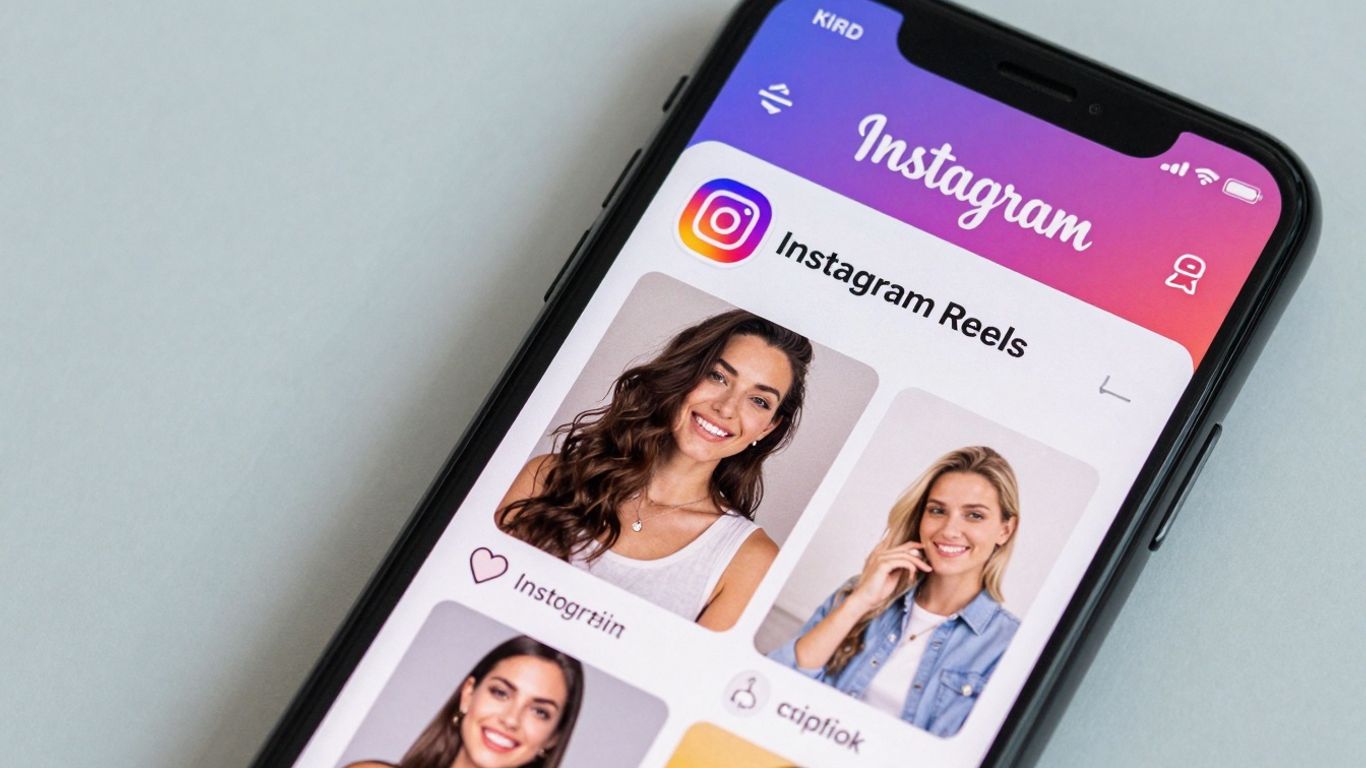
So, Instagram actually has its own editing tools built right into the app. It's pretty convenient, honestly. You can do basic stuff like trimming clips, rearranging them, and even merging a few together. Adding text, stickers, and music is super straightforward too. They've also got these AI-powered effects that can change your background or give your video a whole new style. It's really easy to use, especially if you're just trying to whip up a quick Reel with some text overlays and maybe auto-captions.
It's definitely a good option for influencers and small businesses who need to get content out fast. Plus, it's free and right there when you're creating your Reel, so no need to switch apps. You get access to a library of music and a bunch of AR filters, which can add a fun touch.
However, it's not exactly a powerhouse for super complex edits. You can't really get into the nitty-gritty of professional editing with it. For instance, you're limited to just one music track, and if you're trying to do some fancy multi-layer editing, this probably isn't the tool for you. It's best for quick, creative edits that feel native to the platform.
While convenient, the in-app editor has limitations for advanced editing needs. It's best suited for straightforward edits and quick content creation directly within the Instagram ecosystem.
Here's a quick rundown of what you can do:
- Trim and reorder video clips
- Merge multiple clips together
- Add text, stickers, and music
- Utilize AI effects for background changes and style restyling
- Access a library of music and AR filters
It's a solid starting point for creating engaging content without leaving the app, making it simple to get your ideas out there. For those looking to make their Reels stand out, exploring dedicated Instagram video editing apps might be the next step.
18. How To Choose The Best Editing Software for Instagram Reels
Picking the right tool to edit your Instagram Reels can feel like a lot, right? It’s not just about slapping some clips together. You want something that makes your videos look good without taking up your whole day. So, how do you figure out which app or software is the one for you?
First off, think about where you're at with editing. Are you just starting out and want something super simple, or do you already know your way around a timeline? If you're new, apps like CapCut are great because they have tons of templates and easy-to-use features. If you're more experienced, you might want something with more control, like LumaFusion or DaVinci Resolve.
Then there's the whole mobile versus desktop thing. Do you prefer editing on your phone while you're out and about, or do you like sitting at your computer for more precision? Some apps work best on mobile, others on desktop, and some, like Canva, let you switch between them. It really depends on your workflow.
Here are some key things to consider:
- Your Skill Level: Are you a beginner, intermediate, or pro editor?
- Platform: Do you edit on your phone, tablet, or computer?
- Features: What's important? Templates, AI tools, specific effects, or just basic cuts?
- Export Quality: Does it let you save in high definition without a watermark?
- Audio Tools: How easy is it to sync music and clean up sound?
Don't get too caught up in having every single feature. Often, the best tool is the one you actually use consistently because it's not overly complicated.
It’s also worth looking at what kind of content you make. If you're all about quick, trendy videos, you'll want an app with lots of popular effects and music. If you're making more polished brand content, you might need something with better color correction and text options. And always check if the app lets you export in the right format for Instagram Reels – that vertical 9:16 aspect ratio is key. You don't want your video to look squished or have black bars on the sides.
19. Instagram Reels Hacks and Bonus Tips
Alright, so you've picked out your go-to reel maker, and you're ready to start creating. But how do you make sure your reels actually get seen and don't just disappear into the endless scroll? It's not just about having cool effects; there are some smart moves you can make.
First off, jump on trending sounds and music. Seriously, this is a big one. Instagram's algorithm loves it when you use audio that's already popular. Keep an eye on what's popping up in your feed or what other creators are using. Just make sure it actually fits what you're trying to show. Using a trending sound at the right time can give your reel a serious visibility boost.
Don't go overboard with edits, though. While smooth transitions are nice, too many flashy bits can just be distracting. Stick to simple cuts that help tell your story. Think about it: you want people to watch your content, not get dizzy from a million effects. Some apps make adding quick transitions easy, but use them sparingly.
Keep your look consistent. If you're using specific colors, fonts, or filters for your brand, stick with them in your reels. This helps people recognize your content instantly. It's like your visual signature.
And this is super important: add captions. A lot of people watch videos with the sound off, especially when they're just scrolling. So, having text on screen makes sure your message gets across no matter what. Many editing tools can even generate captions for you, but always give them a quick check to make sure they're right.
Here are a few more things to keep in mind:
- Use relevant hashtags: Don't just throw random tags in there. Pick ones that actually relate to your video and your niche. Instagram lets you use up to 30, so use them wisely.
- Post regularly: Consistency is key. The more you post, the more likely people are to see your stuff and follow you. It keeps you on their radar.
- Try different things: Don't be afraid to experiment with different types of videos. Behind-the-scenes, tutorials, funny skits – see what your audience likes best. Check your analytics to see what's working.
An Instagram story viewer can help creators explore public Instagram Stories and understand what short visual updates, captions, and formats can inspire better Reel ideas.
Remember that Instagram's algorithm tends to favor content that keeps people engaged. This means creating videos that are interesting enough for viewers to watch all the way through, or even rewatch. Authentic content and high-quality visuals often perform better.
Finally, think about how you can use your reels to drive action. Whether it's getting people to visit your website or check out a product, make sure there's a clear call to action somewhere in your reel or caption.
20. FAQs on Editing Instagram Reels
So, you've been making some Instagram Reels and have questions? That's totally normal. Editing can feel like a puzzle sometimes, especially when you're trying to make your videos look good without spending a fortune or getting lost in complicated software. Let's clear up some common stuff.
What are the best free apps for editing Reels?
If you're on a budget, you've got some solid choices. CapCut and VN Video Editor are often at the top of the list. They both give you a lot of power without costing anything, letting you add cool transitions, adjust things with keyframes, and even export in high quality. CapCut is great for quick, trendy edits, while VN offers a bit more control if you want to get detailed.
Do influencers use specific apps for Reels?
Yeah, influencers tend to stick with apps that are easy to use on their phones and have features that help them jump on trends fast. CapCut, InShot, and Splice are super popular for this. CapCut, in particular, is a big hit because it has tons of templates and tools that make syncing videos to music a breeze, which is huge for Reels.
Can I edit Reels on my computer instead of my phone?
Absolutely! If you prefer a bigger screen and more precise control, desktop apps are the way to go. Descript, DaVinci Resolve, and Veed.io are good options. Descript is pretty unique because you can edit video by just editing text. DaVinci Resolve is a powerhouse for serious color work and effects, and Veed.io is handy because it works right in your web browser, so no installation needed.
How do I stop my Reels from looking bad after uploading?
This is a big one. Always export your videos in the right size – that's 1080 pixels wide by 1920 pixels tall (vertical HD). Also, aim for a bit rate between 8 and 12 Mbps. Most good editing apps, like VN or LumaFusion, have export settings that are already optimized for Instagram, so just pick those. Avoid using extra compression tools if you can, as they often just make things worse.
Which apps are best for business or branded Reels?
For businesses, Canva Video, Veed.io, and Descript are really useful. They often have features like brand kits to keep your colors and fonts consistent, easy ways to add your logo, and tools for auto-captions. Canva is great for making sure your Reels look visually on-brand, while Descript and Veed.io can really speed up the process for teams working together.
Does using a third-party app hurt my Reel's reach?
Nope, not at all, as long as you export your video correctly. Instagram likes good quality content. If your video is clear, well-edited, and follows the right specs (size, format), it's more likely to keep viewers watching, which signals to the algorithm that your content is good. So, clean editing actually helps!
What are some general tips for making Reels look better?
- Use trending sounds: Jump on popular audio early, but make sure it fits your content.
- Don't overdo effects: Simple, clean cuts often work best. Too many flashy things can distract.
- Stay consistent: Use the same fonts, colors, and filters so people recognize your brand.
- Add captions: Most people watch Reels with the sound off, so text is super important for getting your message across.
Editing your Instagram Reels doesn't have to be a headache. Picking the right tool for your needs, whether it's a simple mobile app or a more advanced desktop program, can make a huge difference. Focus on clear visuals, good audio, and making sure your message comes through. Consistent practice and paying attention to what works will help you get better over time.
Wrapping Up Your Reel Game
So, we've gone through a bunch of tools that can help you make your Instagram Reels look way better. Whether you're just starting out and need something super simple, or you're looking to get really fancy with effects and editing, there's definitely an app out there for you. Remember, the goal isn't just to make a video, it's to make one that people actually want to watch. Don't be afraid to play around with different apps and features. The best Reel maker is the one that helps you get your ideas out there in a way that feels right for you and your audience. Go make some awesome stuff!
Frequently Asked Questions
What's the best free app for making Instagram Reels in 2025?
For free editing, CapCut and VN Video Editor are fantastic choices. They offer cool features like transitions and special effects without charging you or adding watermarks. CapCut is great for quick, trendy edits, while VN gives you more control if you want to make your videos look super polished and professional.
Which apps do popular Instagrammers use the most for editing Reels?
Many popular creators use apps like CapCut, InShot, and Splice. These apps are easy to use on your phone, have lots of trendy templates, and work perfectly for Instagram's vertical video style. CapCut is a big hit because it has templates that go viral and tools that help sync your video to music beats really fast.
Can I edit my Instagram Reels on a computer instead of my phone?
Absolutely! You can use computer programs like Descript, DaVinci Resolve, and Veed.io for more detailed editing. Descript even lets you edit videos by simply changing the text! DaVinci Resolve is amazing for making your video colors look professional. Veed.io is a good option if you want to edit right in your web browser without downloading anything.
How can I make sure my Reels don't lose quality when I upload them?
Always save your videos in a size called 1080x1920 (which is HD vertical) and make sure the quality setting is at least 8–12 Mbps. Try not to use extra tools to shrink your video file or save the same video over and over. Most good editing apps, like VN or LumaFusion, let you save your videos in the best quality for Instagram.
What's the best app for creating Reels for a business or brand?
If you're making Reels for a business, Canva Video, Veed.io, and Descript are really helpful. They let you save your brand colors and logos, add automatic captions, and work with others easily. Canva helps keep your videos looking like your brand, and Descript and Veed.io make it simple for teams to create lots of videos with captions.
How do I add music to my Instagram Reels using editing apps?
Apps like Splice, KineMaster, and CapCut make adding music easy. You can either upload your own songs or pick from their music libraries. This lets you match the music to your video perfectly, making your Reels more exciting.






Privacy is important to us, so you have the option of disabling certain types of storage that may not be necessary for the basic functioning of the website. Blocking categories may impact your experience on the website. View Our Privacy Policy


